HarborDrop User Guide
Version 2.1 · macOS 14.0+
What is HarborDrop?
HarborDrop is a download manager for macOS. It helps you download files and videos from your browser faster and more conveniently.
Installation
App Installation
- Place HarborDrop.app in your Applications folder.
- Double-click to launch.
- If macOS security prompt appears, click 'Open'.
- Follow the setup wizard to complete initial configuration.
Browser Extension
Chrome, Edge, Brave, Arc, Comet, Opera, Vivaldi and other Chromium browsers:
Chrome extension is available in two versions:
| Web Store | Full Version | |
|---|---|---|
| Install | Web Store | App-managed folder + Load unpacked |
| Auto-update | ✅ | ❌ |
| Video detect | ✅ | ✅ |
| Site-specific capture / Intercept | ❌ | ✅ |
Chrome Full Version Setup
Choose the extension folder in HarborDrop, download the latest version, then load that same folder in Chrome with Load unpacked.
- Open HarborDrop and open Install Browser Extension from Settings or onboarding.
- Click Choose... and select a folder dedicated to the HarborDrop extension. You can choose any folder, but Chrome must use this same folder.
- Click Download Latest Extension to download the latest extension into the selected folder.
- Enter chrome://extensions in the Chrome address bar.
- Turn on Developer mode.
- Click Load unpacked and select the same folder configured in HarborDrop.
- Confirm that the HarborDrop extension appears in Chrome.
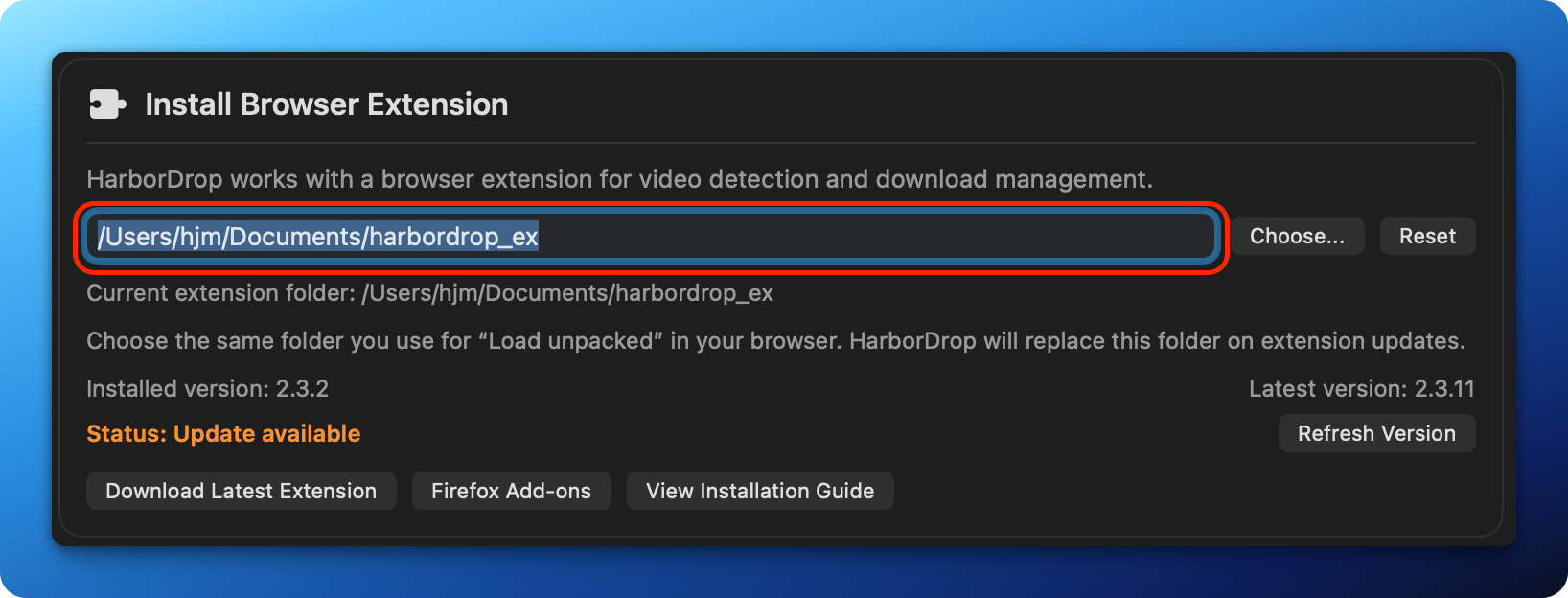
In HarborDrop, choose the folder for the Chrome Full extension and click Download Latest Extension.
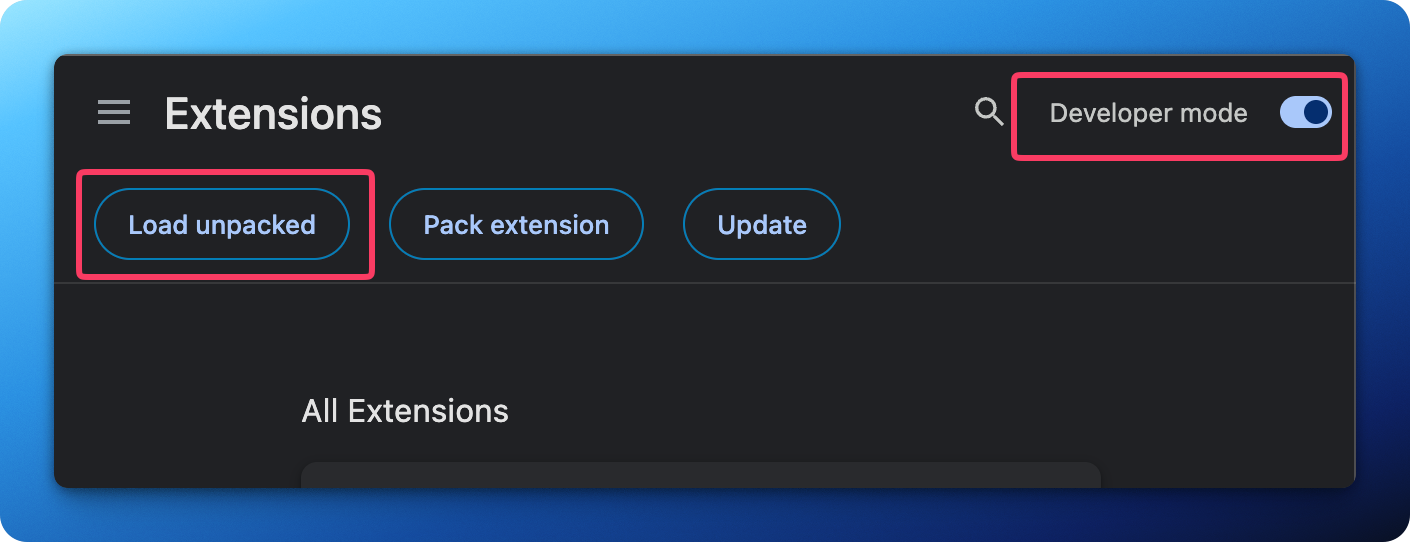
In Chrome, enable Developer mode, click Load unpacked, and select the same folder configured in HarborDrop.
Updating the Chrome Full Version
When HarborDrop shows Status: Update available, click Download Latest Extension, then click Update or reload the extension on Chrome's extensions page. Use Refresh Version in HarborDrop to verify the version if needed.
Firefox:
👉 Firefox Add-onsVerify Connection
- Click extension icon while HarborDrop is running
- Connected at top of popup → OK
- Disconnected → see FAQ
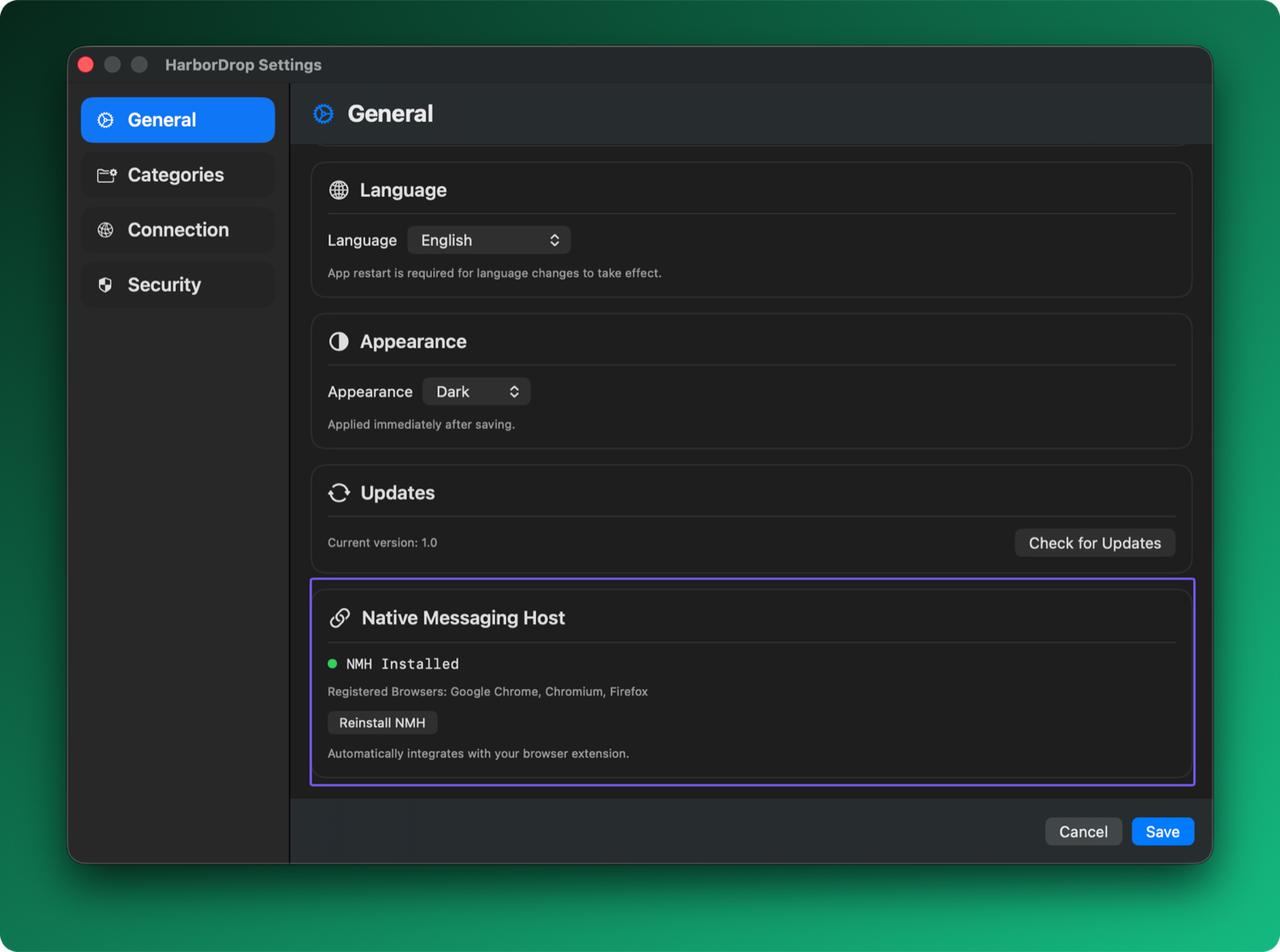
Extension connection status
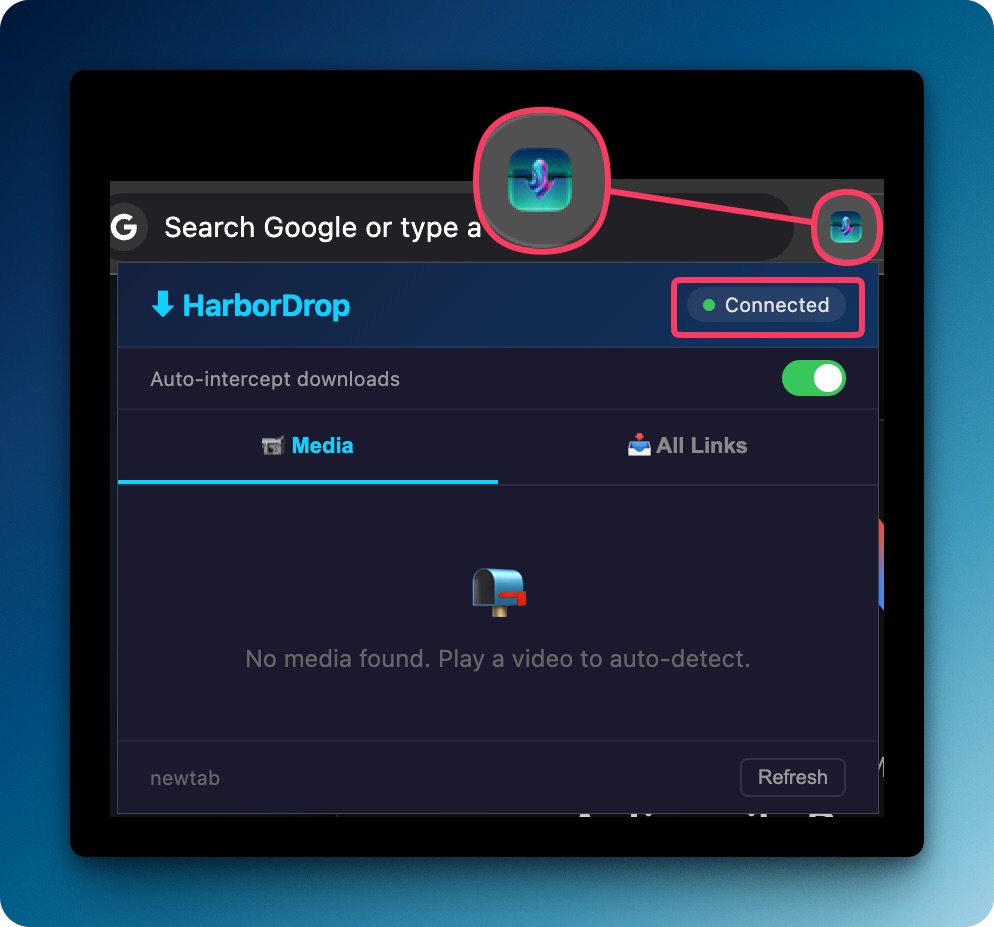
Connected status
How to Download
From Extension Popup
Click extension icon → download from detected media list
Auto Intercept
HarborDrop auto-catches browser downloads. Hold Delete key + click to bypass.
Direct URL Input
Click + button and paste URL. If the clipboard contains a URL, it will be auto-filled.
Right-Click / Drag & Drop
Right-click link or drag URL to app window
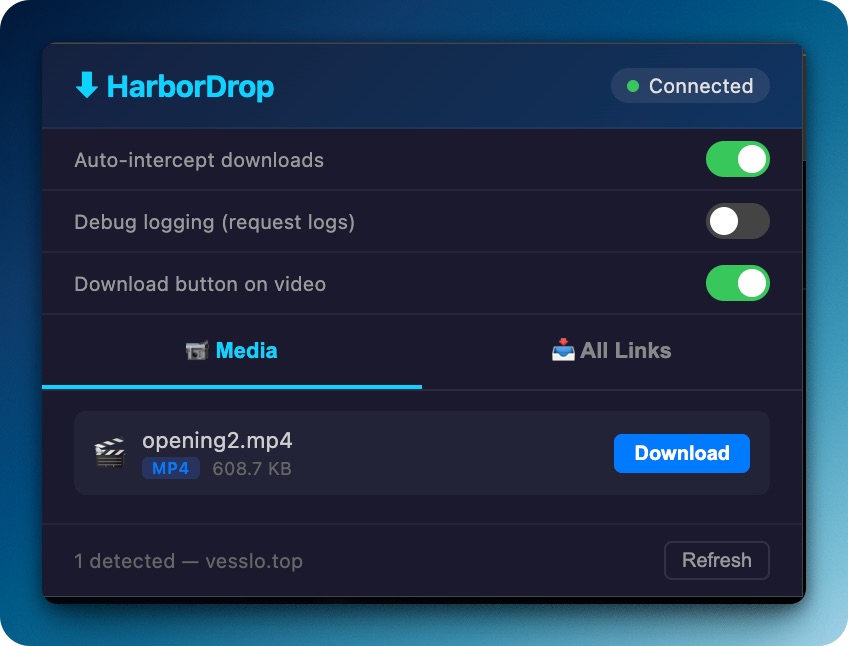
Extension popup media tab
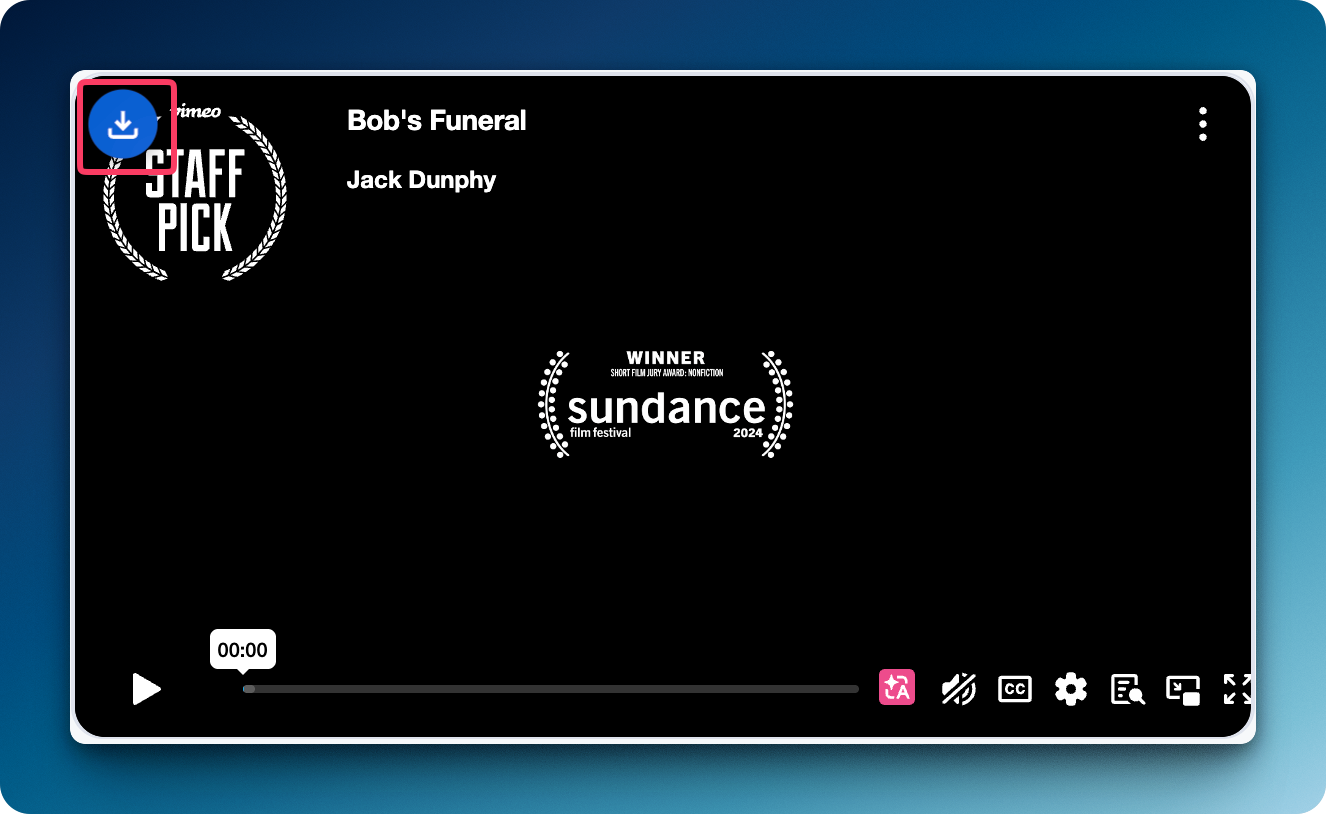
Download button overlay on video
Interface
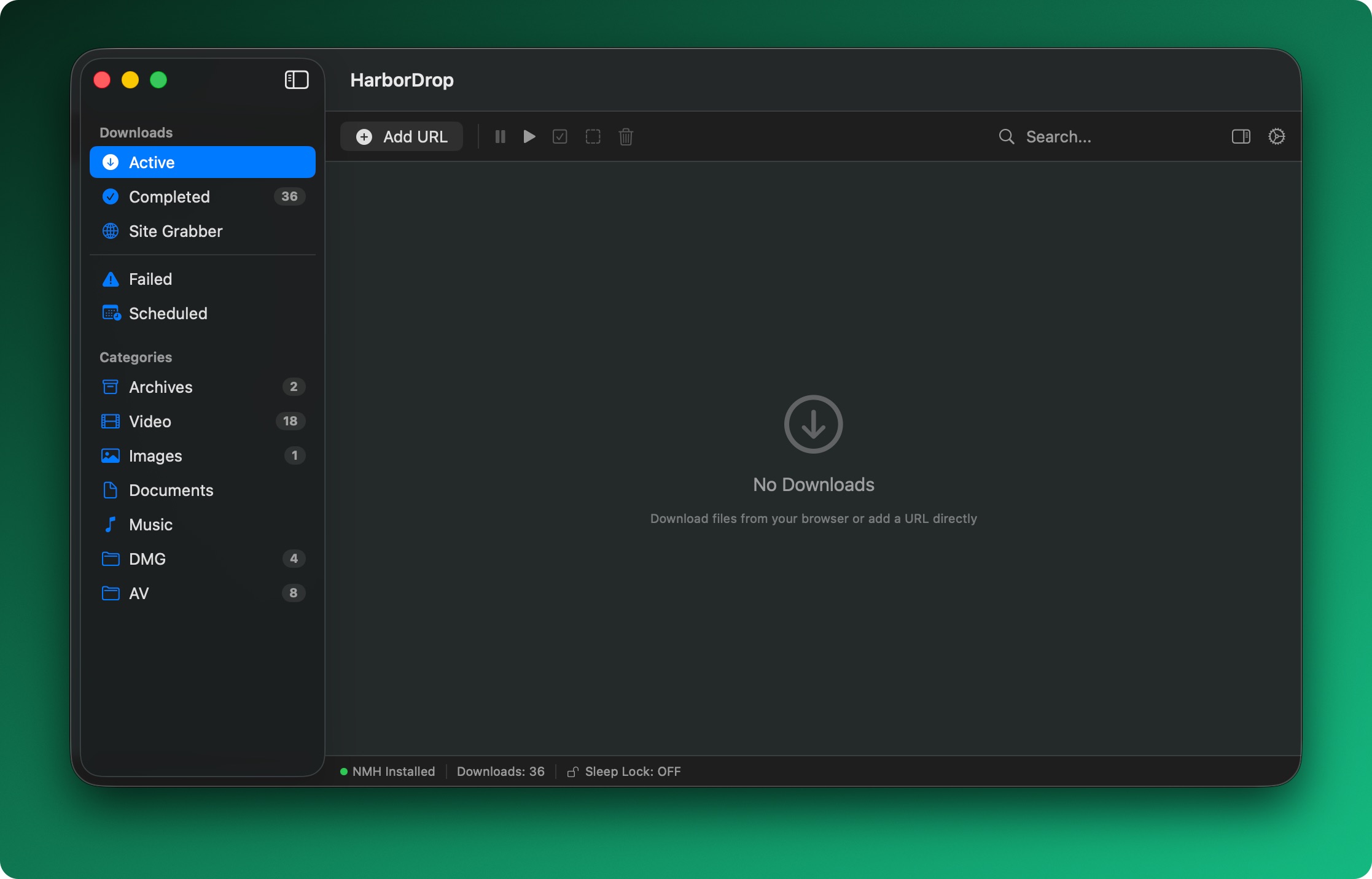
HarborDrop main interface
Sidebar
| Active | Files currently downloading |
| Complete | Finished downloads |
| Failed | Failed downloads |
| Scheduled | Scheduled download queue |
| Site Grabber | Collect all page links |
| Categories | Categorized by file type |
Toolbar
| + | Add URL to download |
| ⏸ / ▶ | Pause / Resume all |
| 🔍 | Search by name, URL, domain |
| ℹ️ | Selected file details |
| ⚙ | Open settings |
Enable 'Menubar Quick Control' in Settings > General to control downloads directly from the top menu bar.
- Add URL, pause/resume all
- Recent completed files list
- Retry failed downloads
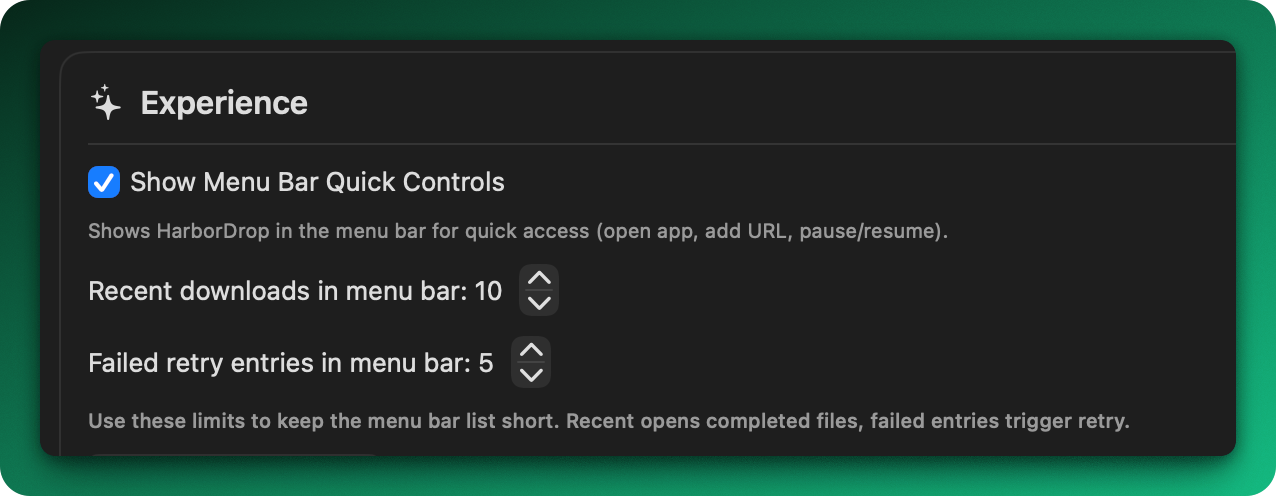
Menubar quick control
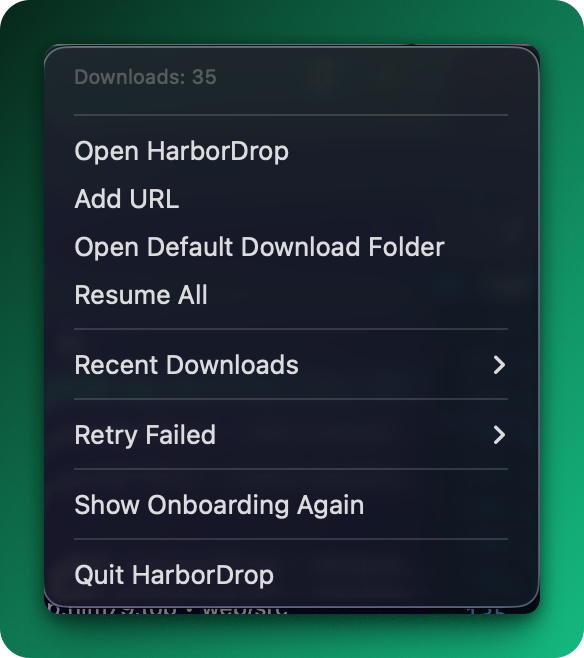
Menubar expanded view
Download Dialog
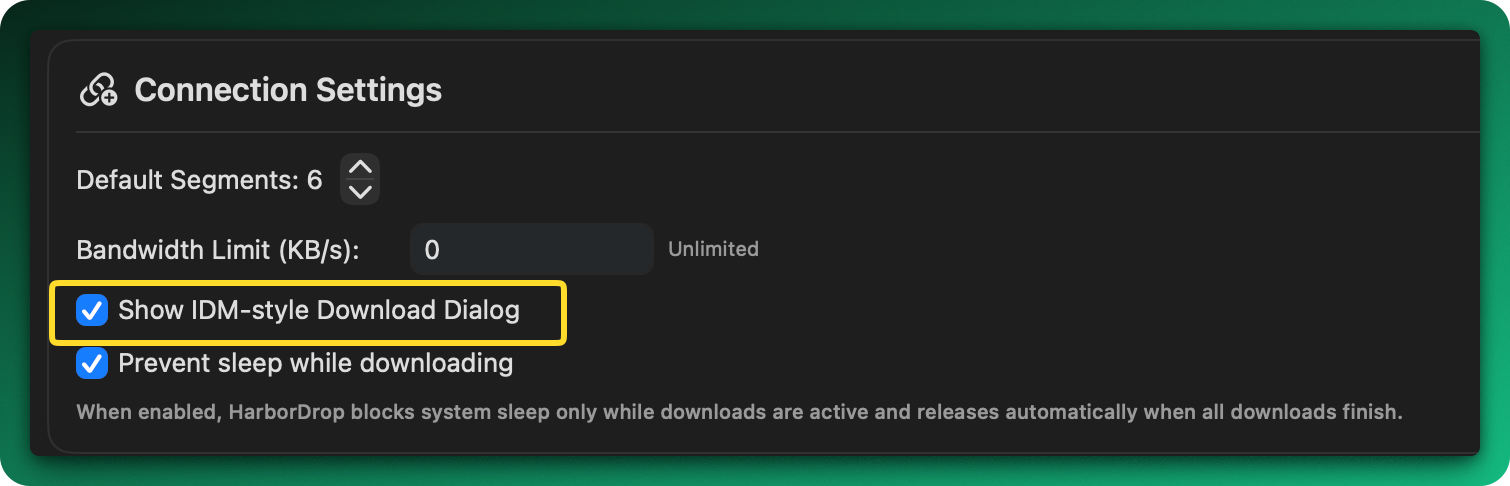
When 'Show IDM-style download dialog' is enabled in Settings, a confirmation dialog appears before each download.
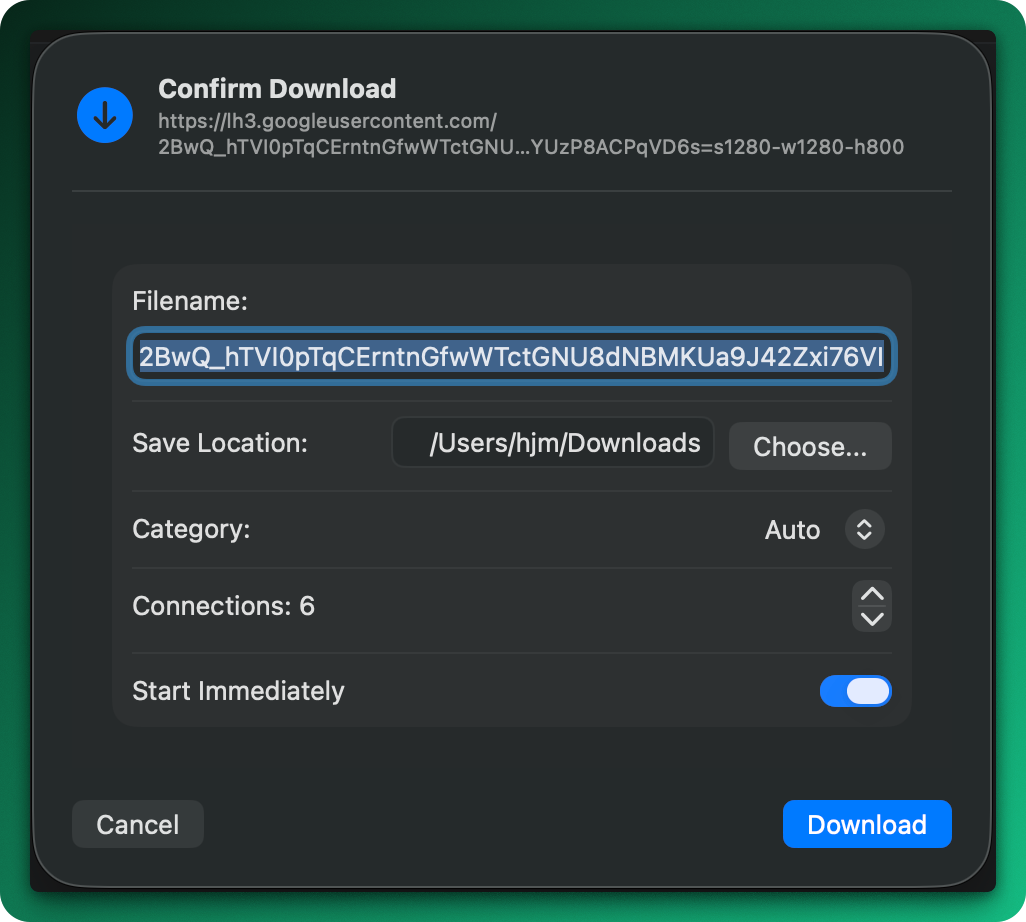
| Filename | Editable file name |
| Save Location | Destination folder |
| Category | Auto-assigned category |
| Connections | Segment count (more = potentially faster) |
| Start Now | Uncheck to queue without starting |
File Management
Basic Actions
| Double Click | Open file |
| Space | Quick Look preview |
| ⌘ + A | Select all |
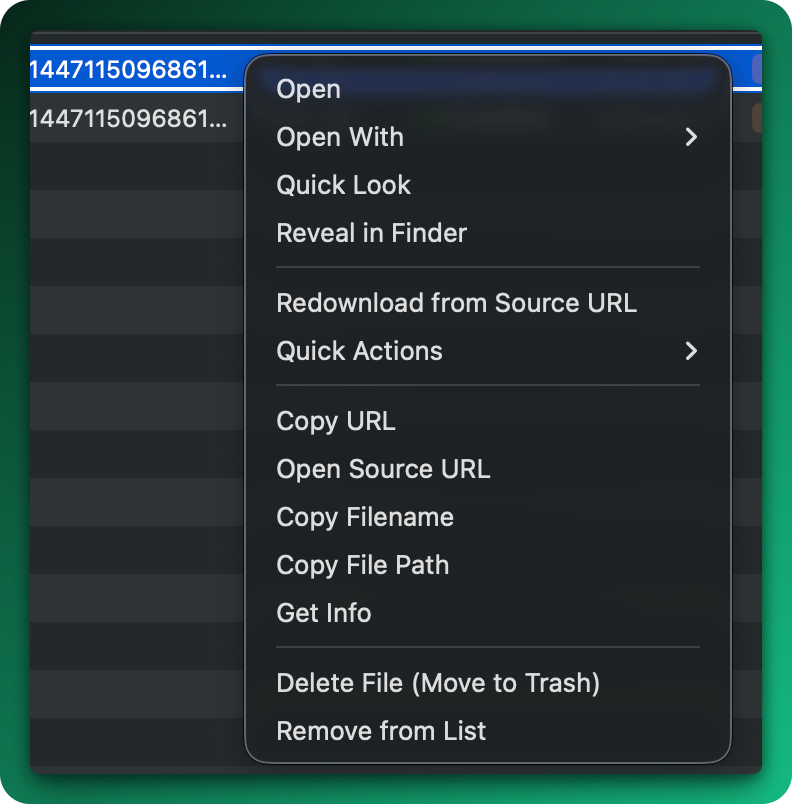
Right-click menu
Permitted Media Workflow
When a supported page exposes permitted, non-DRM media resources, HarborDrop detects available media and guides the page URL based workflow.
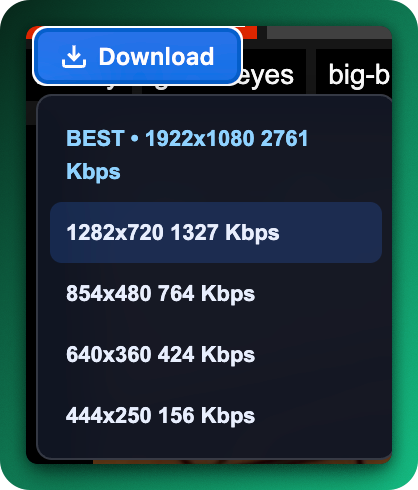
Quality selection
Permitted HLS (m3u8) Media
When the source provides downloadable non-DRM HLS (m3u8) resources, HarborDrop processes the segments and merges them into one file.
Extension Features
Media Tab
Shows detected videos, audio, and streams on the current page.
All Links Tab
Lists all downloadable links on the page, organized by type.
Links matching exclusion rules in Settings > Connection are skipped, with a 'Skipped' notice in the popup.
Extension popup — Media tab
Download button on video
Auto-Categorize Files
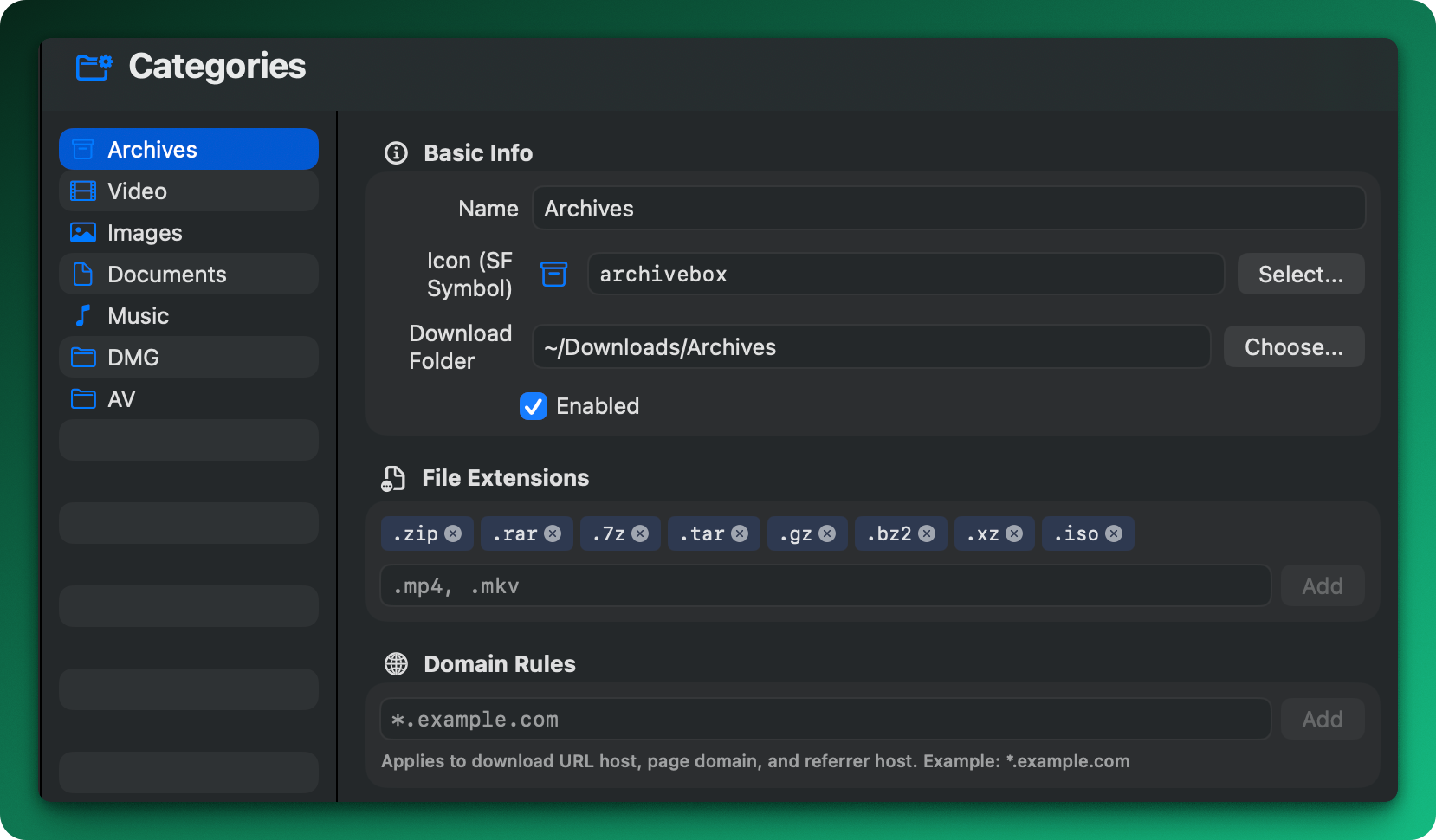
Category settings
| Name | Category name (e.g., Videos, Documents) |
| Save Folder | Destination folder for this type |
| Extension Rules | Match by extension (e.g., mp4 avi mkv) |
| Domain Rules | Match by download source domain |
Scheduled Downloads
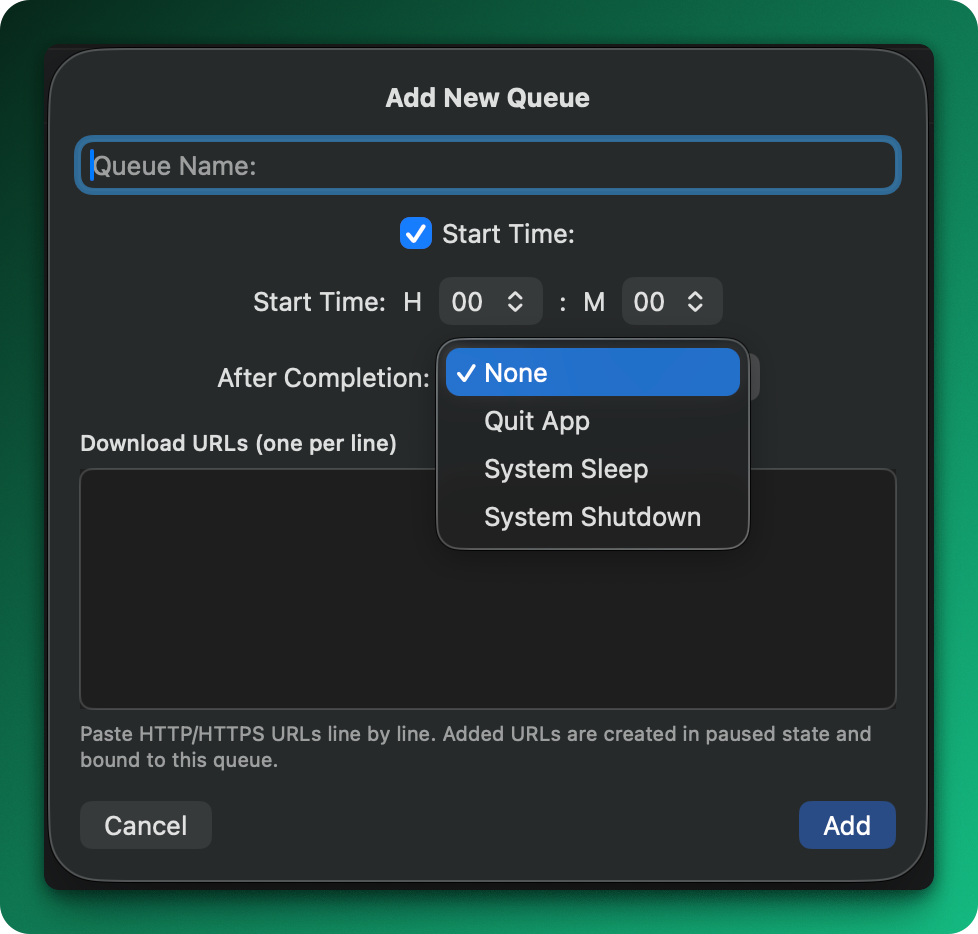
Schedule settings
- Select 'Scheduled' from sidebar
- Click 'Add Queue', enter name
- Set desired time
- Add URLs → auto-starts at scheduled time
After Completion
| None | No action |
| Quit App | Close HarborDrop |
| Sleep | Put Mac to sleep |
| Shutdown | Shut down Mac |
Site Grabber
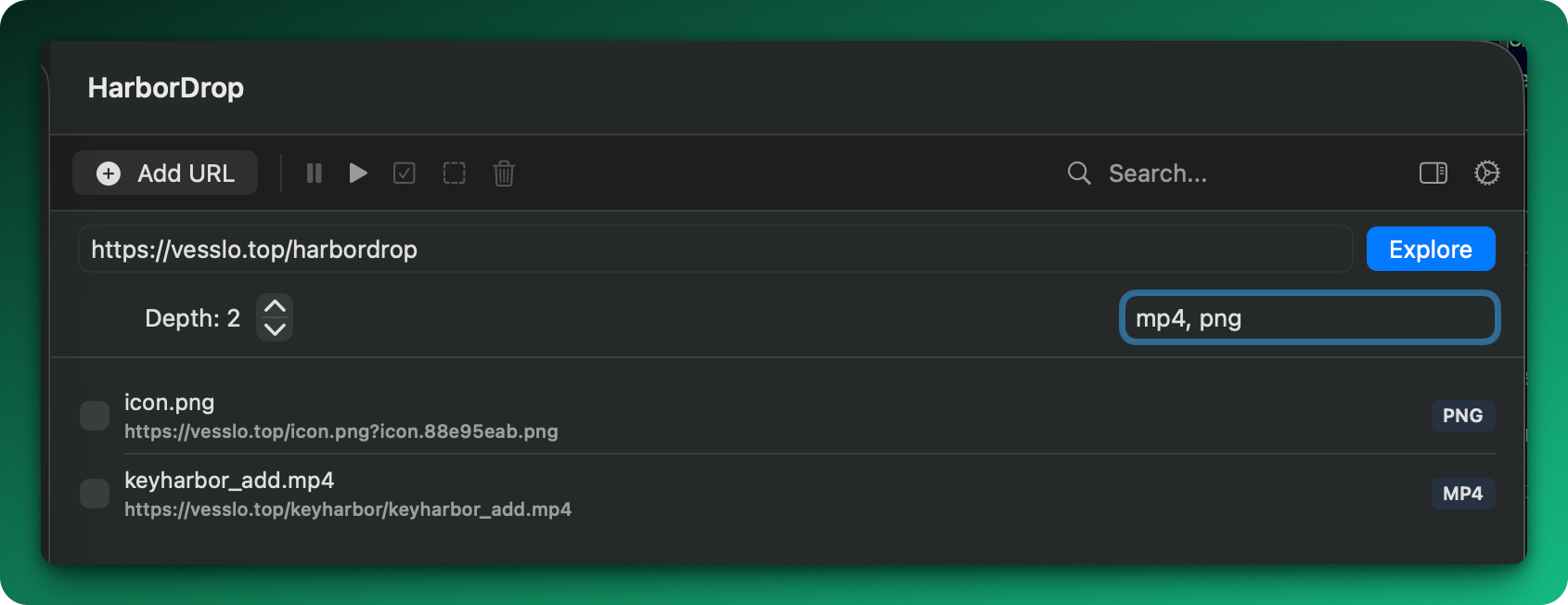
Site Grabber interface
- Select 'Site Grabber' from sidebar
- Enter URL and start scanning
- Set depth and filters (e.g., mp4,zip,pdf)
- Select items and download
Post-Download Actions
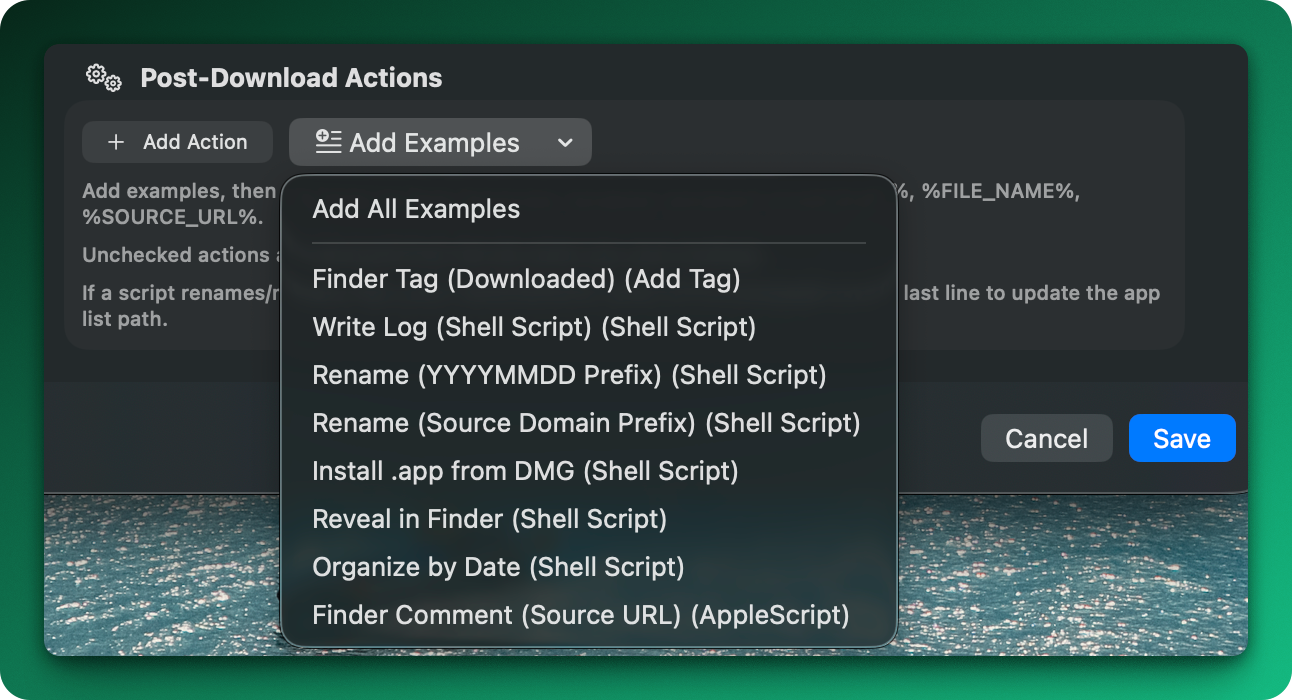
Post-download action settings
| Add Finder Tag | Tag files for organization |
| Log Record | Log download history |
| Date Rename | Prepend date to filename |
| Domain Rename | Prepend source domain to filename |
| Auto-install DMG | Auto-copy DMG app to Applications |
| Reveal in Finder | Open file location after download |
| Date Folder | Auto-move to today's date folder |
| Source URL Comment | Write source URL to Finder comment |
Available Variables
| %FILE_PATH% | Full file path |
| %FILE_NAME% | File name |
| %FILE_DIR% | Containing folder path |
| %SOURCE_URL% | Original download URL |
| %SOURCE_DOMAIN% | Source domain |
| %DATE_YYYYMMDD% | Today's date |
Settings
HarborDrop settings are organized into six areas: General, Extension, Categories, Connection, Security, and About.
General
| Default Folder | Default save location |
| Max Concurrent | Files downloaded at the same time (1–10) |
| Download Dialog | Confirm filename, folder, and segments |
| Prevent Sleep | Prevent sleep only during active downloads |
| Notifications | Completion/failure notifications and sounds |
| Organization | Auto-categorize and remember save locations |
| App Presence | Dock, menubar, and browser-handoff activation |
| Language | Korean / English / System |
| Appearance | Light / Dark / System |
Extension
| Chrome Full | Install folder and version management |
| Update | Install the new version, then reload the browser extension |
| Firefox | Install and update through Firefox Add-ons |
| NMH | Connection status and registered browsers |
| External Tools | yt-dlp / ffmpeg |
Categories
| Enable | Enable or disable each category |
| Priority | Categories higher in the list are checked first |
| Save Folder | Fixed folder or date/domain variables |
| Matching Rules | Extension, domain, MIME, and filename patterns |
| Post Actions | Automation for each category |
Connection
| Segments | Connections used for one file (1–32) |
| Bandwidth | Speed limit (0 = unlimited) |
| User-Agent | Applies only to manually added URLs |
| Proxy | HTTP, HTTPS, SOCKS5, and authentication |
| HTTP Auth | Credentials and allowed domains |
| Exclusions | Files, sites, or URLs left for the browser |
Security
| TLS Exceptions | Allow certificate bypass only for required domains |
| Script Security | Allow advanced post-download actions |
| Remembered Credentials | Review or remove credentials by host |
| Quarantine | Apply macOS Quarantine to downloaded files |
About
| License | Activation, trial, and deactivation |
| Updates | Current version and update check |
| Feedback | General feedback and feature requests |
| Bug Report | Report with diagnostics and system information |
| Official Links | Product page and support documentation |
Site Exclusion vs URL Pattern Exclusion
Site Exclusion
Leaves matching domains to the browser instead of HarborDrop. Supports subdomain wildcards.
*.google.comURL Pattern Exclusion
Leaves only matching URL patterns, including path and query, to the browser.
*://mail.google.com/mail/u/*?*view=att*Keyboard Shortcuts
| ⌘ + A | Select all |
| ⌘ + ⇧ + A | Deselect all |
| Space | Quick Look preview |
| Double Click | Open file |
| Delete + Click | Bypass auto-intercept |
FAQ
Extension shows 'Disconnected'
Check app is running → Settings > General > Reinstall NMH → Reload browser extension
Download button clicked but fails
The media URL may have expired or may no longer be exposed by the source page. Refresh the page and try again. From the failed item menu, use Retry (same URL) or Redownload from Source URL (re-fetch from original page).
Filename looks weird
Edit filename in the download dialog, or set rename rules in category actions.
Download doesn't work on a specific site
Check Settings > Connection > Exclusion rules for the site.
TLS/certificate error appears
For special cases like internal company servers, add the site to Settings > Security > TLS Exception Domains.
Browser shows 'Extension context invalidated' error
Reload the extension, then reopen the affected tab.